Presenter Console
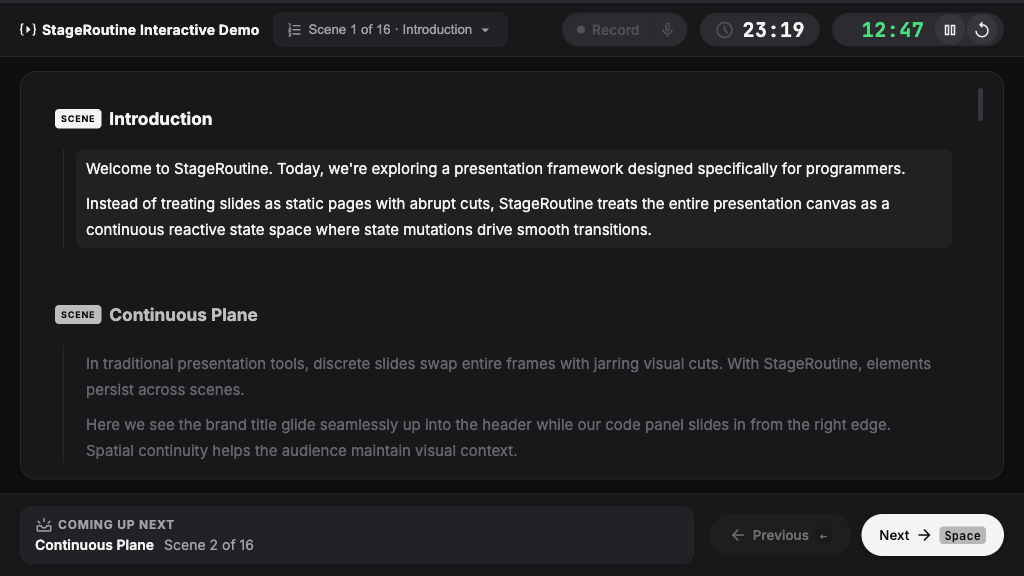
StageRoutine includes a standalone presenter console available at /presenter.html.
Open http://localhost:5173/presenter.html in a separate browser window alongside your presentation or on an external display. Both windows connect automatically.
Writing Speaker Notes
Speaker notes are written in a Markdown file:
---
title: System Architecture Talk
duration: 20m
warning: 5m
---

## Introduction

Welcome everyone to the talk.

## Architecture Overview

Here is our high-level architecture.

> [!STEP] Ingress
Incoming client traffic hits the API Gateway.

> [!STEP] Cache Validation
> [!ACTION] Switch to live terminal to run the benchmark

Next, the gateway inspects Redis to validate the token.

> [!CUE] Emphasize sub-millisecond response times.
Frontmatter Settings
Optional YAML frontmatter at the top of the file configures talk metadata:
| Field | Description | Example |
|---|---|---|
title | Talk title displayed in the console header | title: System Architecture |
duration | Total allotted talk duration | duration: 20m or duration: 1200s |
warning | Amber alert threshold before time expires | warning: 5m |
Scenes and Steps
Structure notes to mirror your presentation code:
## Scene Name: Matches the name passed tostage.scene("Scene Name"). In Markdown editors, these form a clickable document outline.> [!STEP]: Marks each step paused withstage.pause(). An optional label can follow, like> [!STEP] Ingress.
Stage Directions
Highlight personal cues so you never read them out loud:
> [!ACTION](Amber): Physical actions and live demo tasks.> [!CUE](Blue): Speaking prompts and delivery reminders.> [!WARN](Red): Pitfalls and topics to avoid.
All regular text renders as your spoken talking points.
Loading Notes
Import the Markdown file as raw text and pass it to stage.notesDocument():
import notesDoc from "./notes.md?raw";

stage.notesDocument(notesDoc);
Console Features
Live Timer
The timer in the header always counts down toward zero:
- Ticks down to
00:00, then continues into negative overtime (-00:01) with red styling. - Turns amber when reaching the
warningthreshold. - Starts at
00:00into negative time if no duration is configured. - Click the timer display at any time to set a new time budget (
MM:SSor minutes).
Navigation
Notes stay synchronized with slide playback:
- The active scene and step highlight automatically as you advance.
- Click any scene heading or step block in the notes to jump directly to that point.
- Use the scene dropdown chip in the top header to jump across chapters.
Screen Recording
The console includes built-in recording:
- Click the Record button in the header.
- Select the presentation tab in the browser picker.
- Toggle the microphone button to include audio narration.
- Click Stop to download the recorded video.
Recording uses a fixed 2560 × 1440 frame at up to 60 frames per second, with a 24 Mbps video bitrate target. It crops the centered 16:9 stage area as the tab resizes. The browser selects WebM or MP4 based on codec support.
Custom recording controls
Use PresenterRecorder in a custom presenter view:
import { PresenterRecorder } from "stageroutine";

const recorder = new PresenterRecorder();
const unsubscribe = recorder.onUpdate(({ status, seconds, error }) => {
  // Update your controls from the current state.
});

// Call from a button click. False means capture was declined or cancelled.
const started = await recorder.start();

// Wait for finalization, download, and resource cleanup.
await recorder.stop();

unsubscribe();
await recorder.dispose();
Startup and finalization failures reject their promises and appear in getState().error.
Wait for stop() before restarting.
dispose() discards an active recording and permanently releases the recorder.
If a capture picker is open, cleanup waits for it to close and releases any resulting stream.
See the recorder API for all methods.